
Links within this page: Identifying a presenter | How to Tell if There is a Virtual Component | In-person Talks | Requesting a Presentation Waiver | Virtual Talks and Pre-recorded Videos | Recorded Presentation Guidelines | How to Record a PowerPoint Presentation | Uploading your Talk Files | How to Join the Session as a Virtual Speaker | Live Presentation Guidelines for Virtual Speakers | Poster Presentations | Uploading your Poster Files
NOTICE: Not all sections will be applicable to every ISCB conference
During submission corresponding authors will be identified. These authors will be contacted regarding anything associated to that submission. This includes the Confirmation of Participation form (CoP), which is sent out in advance of the conference. The CoP allows the authors to identify the presenter, correct any errors in the title, abstract or authors list, and collects GDPR relevant information regarding any potential recording of a presentation. Even conferences that have no virtual component still collect these permissions as ISCB may record promotional material that will be broadcast. The CoP confirmation emails will contain the instructions below, as relevant to the submission type (talk or poster).
ISCB is committed to sharing science to as broad an audience as possible. A key way to do this is by including virtual attendance to some of our events. To tell if there is a virtual component at an ISCB event, visit the registration page. If there is pricing for virtual attendance then there is a virtual component to that conference.
For poster presenters, further confirmation can be attained by visiting the poster page for that event. The dates and times for every session are listed there. If there is a session titled "Virtual" then that conference has a virtual poster component, even if there are no tracks listed under that heading when you visit the poster page.
Those presenting in-person must use the supplied computer. You should pre-load your presentation on the in-room computer prior to the session in which you are scheduled to give your presentation. This is the only upload required of in person presenters.
Presentation Specifications:
- All laptops will run Microsoft Windows 10/11 and include PowerPoint. PDFs are NOT AN ACCEPTED format for a presentation for several reasons:
- PowerPoint 365 includes a subtitle generation feature improving accessibility of presentations and recordings for those hard of hearing
- PDFs will not be able to have the full screen shown on the podium computers
- PDFs do not integrate to the slide deck for interactive notes on the Performedia player
- All laptops will have Microsoft Office 365, compatible with Office 2016 and newer
- If video will be a part of your presentation, it is highly recommended for it to be inserted using the “Video on my PC” option within PowerPoint
- Save/include the video file included in the same folder as your presentation
- Do not use the “Online Video” option
- Presentation times will not be extended for troubleshooting technical difficulties for videos that do not load
- Custom/non-standard Windows fonts are not recommended or supported
- High resolution images in powerpoint will be compressed to save space unless High Fidelity image settings are enabled
- Found under File > Options > Advanced
- Scroll to "Image Size and Quality"
- Select "High Fidelity" from the "Default resolution" list
- Check "Do not compress images in file"
- Ensure "Discard editing data" is unchecked
- Apple Keynote, PDFs, and Google Slides are not supported
- Slide size should be set to “Widescreen (16:9)” within PowerPoint (this is the default)
- Projector Information: 16:9 Aspect Ratio/1920x1080 resolution. Physical screen size will vary depending upon the room.
ISCB strongly prefers that submissions accepted for oral presentation be presented in-person at the conference venue. We understand that some presenters will have good reasons to avoid in-person attendance. ISCB will grant remote presentation options for reasons associated to maternity/paternity leave, care for a family member, personal/medical disability, sickness, or visa problems. Presenters are expected to attend in person unless genuine barriers exist. Inability implies circumstance, not choice. If unable to participate in-person you will need to request a waiver by writing
Any presenters granted a presentation waiver will be required to provide a pre-recorded talk in advance of the conference as a precaution due to possible technical issues.
All abstract presenters, invited speakers, and proceedings presenters granted a presentation waiver are required to provide a pre-recorded talk in advance of the conference. The pre-recorded talk will be loaded to the virtual platform's Asynchronous Talks section. Attendees will be able to watch the video for so long as the virtual platform is live and will be able to message the presenter through the virtual platform for any Q&A.
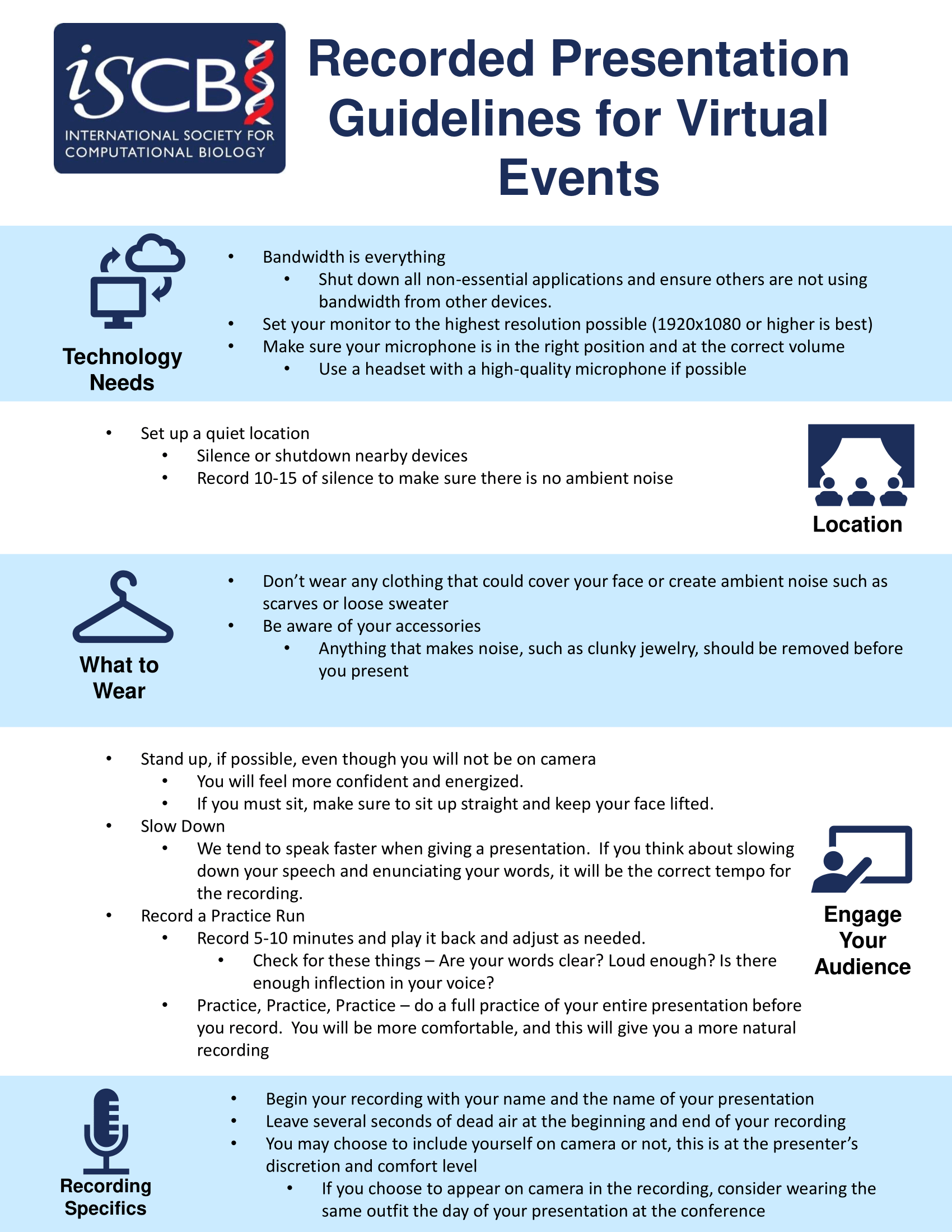
Pre-recorded talks must be an .mp4 file. Videos should be recorded in 720p - 1080p and there is no limit on video file size. Instructions for where/how to upload your file will be communicated to you in advance of the conference.
- Save your presentation as .mp4 file
- If you are presenting a poster in addition to a talk you must prepare a second video for the poster as the allowed time is shorter (maximum five (5) minutes). The video for your talk cannot be used for your poster presentation. See the poster instructions below for more details
- Recording may or may not include the presenter in the recording, this is at the presenter's discretion
- Ensure you prepare your talk based on the length of time specified within the acceptance notification
The following links can be of assistance for planning your presentation(s):
How to record a power point presentation
For presenters granted a presentation waiver, a pre-recorded version of your talk is required as a back-up precaution, should anything prevent you from being able to present live. We would rather play your recorded talk then have 'dead time' within the programme.
Instructions for where/how to upload your file will be communicated to you in advance of the conference along with scheduling a connection test to ensure there are no technical issues. Additional presentation time will not be granted if technical difficulties delay or interrupt your live presentation. If you are not contacted with these details your presentation will not be configure for remote presentation
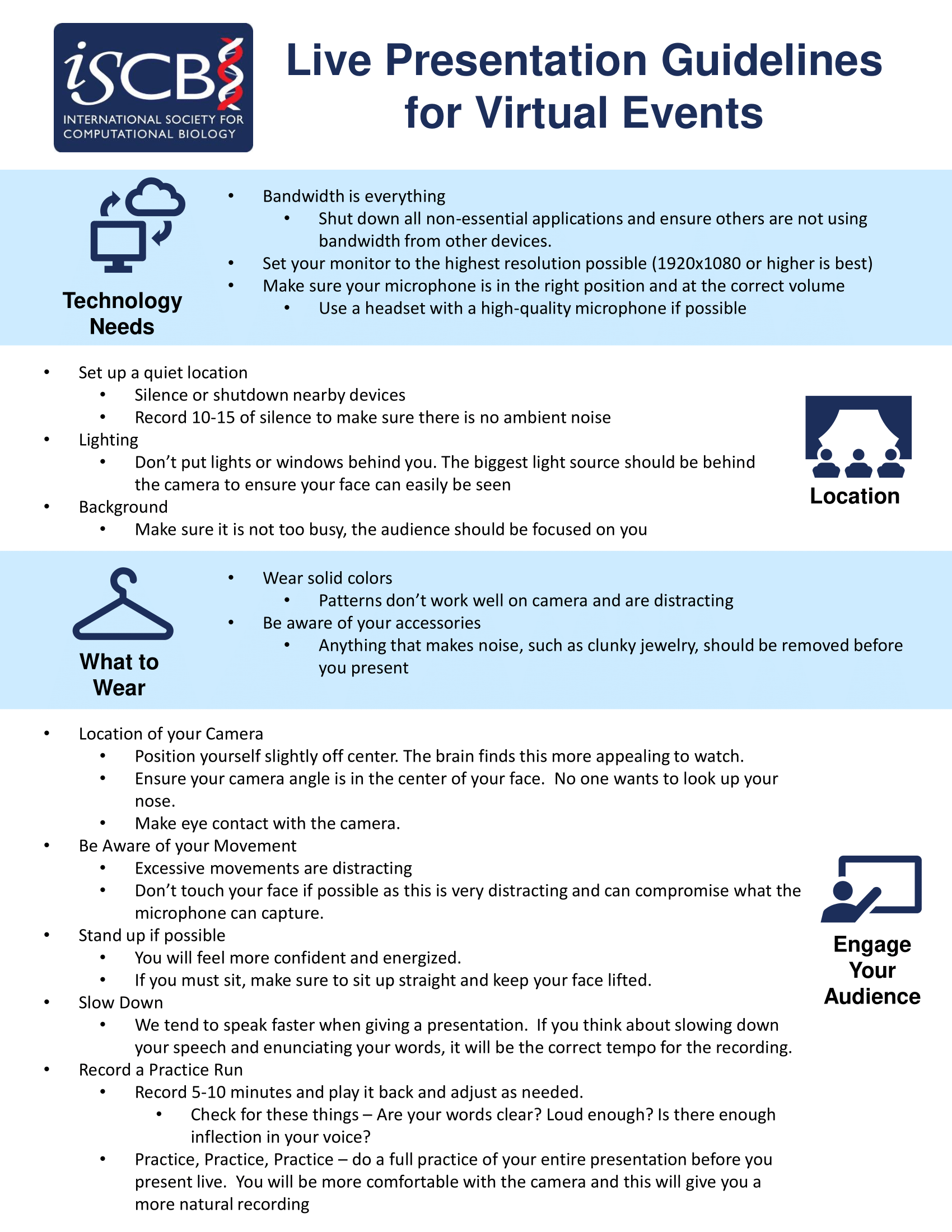
Not all events allow for virtual presenting, only those granted a presentation waiver may present virtually. The underlying infrastructure to the Performedia platform is Zoom based. Virtual speakers will log in to Zoom using credentials communicated to them when scheduling a connection test in advance of the conference to ensure there are no technical issues. If you are not contacted with these details your presentation will not be configured for remote presentation, it is the responsibility of the virtual presenter to ensure they schedule the connection test and have the credentials needed for their live presentation. Any questions about presenting virtually can be sent to
We ask that presenter join as early as they are able during the break before the session containing their talk. This way, a final connection test can be performed and any last-minute troubleshooting can be handled without using time allocated to the presentation. Additional presentation time will not be granted if technical difficulties delay or interrupt a live presentation. At the end of their presentation, we ask presenters stay in the Zoom room to answer questions via chat.
For the best experience, please consider the following in preparation of the conference:
- Hardwire your computer vs wifi
- Close other browsers, turn off background programs, and eliminate other internet devices being used if possible
If you need assistance joining the room, there is a help chat available that will attempt to troubleshoot and connect you to live assistance. You can also contact
Poster presenters at a conference without a virtual poster component will only present their poster on-site and do not need to upload any poster files. If your conference has a virtual poster component you will receive an email with instructions on how to upload your files. All poster presenters at a conference with a virtual poster component, including those presenting in-person, will upload a video no longer than five (5) minutes to the virtual conference platform site along with a PDF of their poster. Failure to upload a digital version of your poster will revoke your in-person poster acceptance.
Those presenting a poster and a talk on the same topic must provide two sets of files, one for the talk and one for the poster. A talk video cannot be used for a poster presentation as the allowed time is shorter and the format is significantly different.
Presenters will upload their poster and video via the conference platform with the following:
- Presentation abstract
- PDF of your poster, no larger than 100Mb
- Maximum five (5) minute poster presentation recording as .mp4 file
- Videos should be recorded in 720p - 1080p and there is no limit on video file size
Poster presenters will be able to:
- Direct message with attendees
- Submit questions via email that will be communicated to the presented in accordance with GDPR
- Q&A with the poster presenter via public comments
Some helpful tips on planning your recorded talk are available below.
Presenting your poster in a lighting style format using the PechaKucha or Ignite talks presentation style or a single slide or PDF is an option for presenters.
Here is an example of a presentation: https://youtu.be/rbLbb7eOao8
Poster size limits can vary between conferences. Be sure to check the Posters page of the conference you're attending to confirm the size limits of your poster. Only in-person presenters need to print a poster.
Poster presenters at a conference without a virtual poster component will only present their poster on-site and do not need to upload any poster files. If your conference has a virtual poster component you will receive an email with instructions on how to upload your files. All poster presenters at a conference with a virtual poster component, in-person or virtual, will upload a video no longer than five (5) minutes to the virtual conference platform site along with a PDF of their poster. Failure to upload a digital version of your poster will revoke your in-person poster acceptance.
Those presenting a poster and a talk on the same topic must provide two sets of files, one for the talk and one for the poster. A talk video cannot be used for a poster presentation as the allowed time is shorter and the format is significantly different.
To ensure all required presentation materials are available, be sure to follow these steps to upload your files:
- Once the window for you to upload your poster opens you will be sent an email from
This email address is being protected from spambots. You need JavaScript enabled to view it. with the subject line "You have been added as an Admin" - Log in to the conference virtual platform using the same email you used when you registered and the password provided in the "You have been added as an Admin" email
- Click My Profile under the top-nav menu to bring up the options and select Upload Video
- Click the upload video icon, then provide a recording name and the video file
- Click Submit
- Click My Profile under the top-nav menu to bring up the options and select Edit Poster Page
- Scroll down to the Poster PDF/Image section and click Add File
- After uploading the pdf, select it from the file list, then click the Select button on the bottom right